 Ixitxachitl's Stream Tools

Input Display
Show your controller on stream and light up every button you press, every stick you move and every trigger you squeeze. It works with any controller your computer sees: Xbox, PlayStation and Switch pads, fight sticks, hit boxes, retro adapters and more. Pick a preset or build your own layout in the editor. It's all vector art, so it stays sharp at any size.
The real overlay with a pretend controller playing by itself. Switch between a few presets with the buttons. On stream the background is transparent, so only the controller shows.
Setup guide
Show your controller
- Open the editor Go to input.ixitxachitl.com and press a button on your controller so the browser can see it. The dot in the top corner turns green and the preview starts lighting up.
- Pick a layout Click a preset on the left: Xbox Series or 360, PlayStation 5 or 4, Switch Pro, GameCube, N64, SNES, NES, Mega Drive / Genesis, Saturn, Hit Box, leverless, or a fight stick. Or start from New blank and build your own.
- Check it lines up Press everything. If something lights up the wrong part, click that part and press Bind, then press the right input on your controller.
- Choose a look Under Overlay link, pick a theme (Dark, Light, Outline, Neon or Ghost), turn on the glow, hide the controller body, or fade it out when you're not touching the controller.
-
Add it to OBS
Press Copy link, add a Browser source and paste the link into its URL
field. Make it the size the editor shows under the link (e.g.
1000×800) or any size of that shape. Then press a button on the controller once so OBS sees it too.
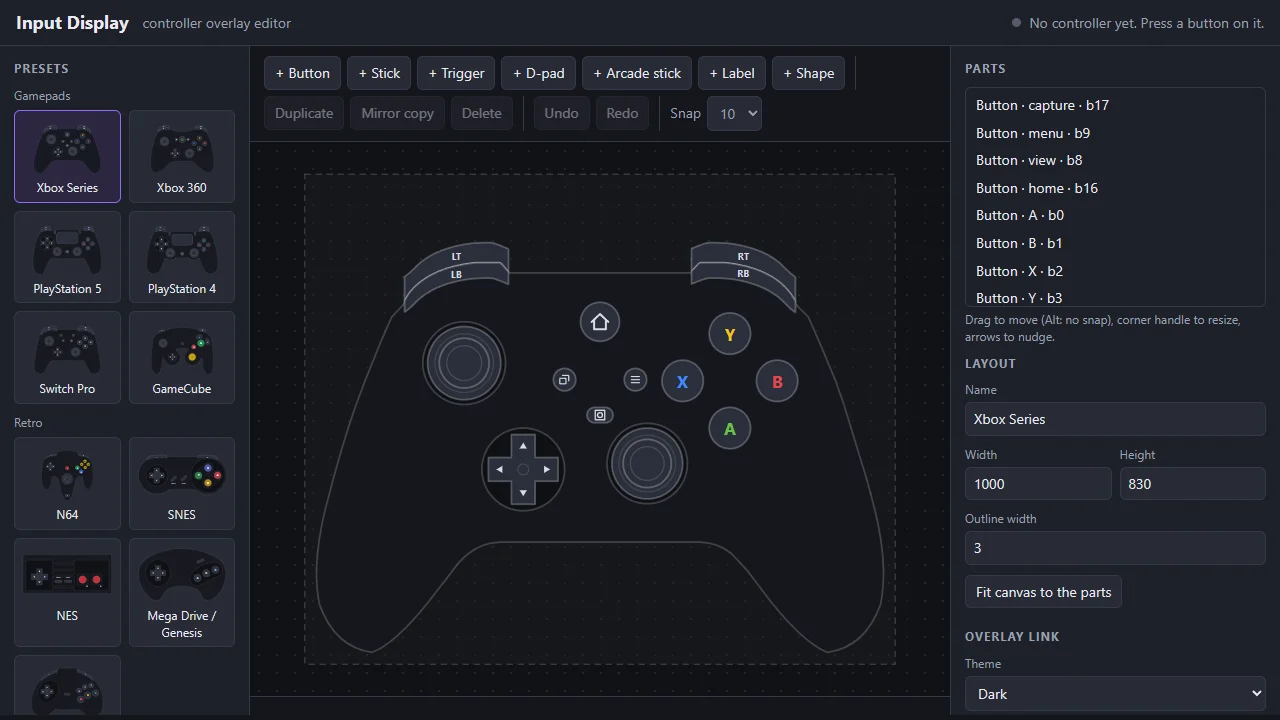
The editor: presets on the left, your layout in the middle, settings on the right.
Build your own
- Add buttons, thumbsticks, analog triggers, d-pads, ball-top arcade levers, labels and shapes, then drag them where you want them. Perfect for custom hit boxes and leverless layouts.
- Bind a part by pressing it: click Bind, then press the button or move the stick. Use + to let a second input light the same part.
- The bar under the canvas shows every button and axis your controller sends, so odd adapters and DirectInput sticks are easy to set up. The All inputs preset shows the lot.
- Give each part its own colors and shape, mirror parts to the other side, snap to a grid, and undo anything.
- Save layouts in your browser or export them as a file. The overlay link carries the whole layout, so OBS doesn't need anything saved.
Link settings
Editing the link by hand
The editor builds the link for you, but you can also tweak it yourself. Every setting is optional and
missing ones use the defaults. The overlay lives at
https://input.ixitxachitl.com/overlay.html.
| Setting | Values | Default |
|---|---|---|
layout |
A preset: xbox, xbox360, playstation, playstation4,
switch, gamecube,
n64, snes, nes, megadrive, saturn,
hitbox, leverless-wasd, stick-8, stick-6,
stick-4, or raw (every input the controller has)
|
xbox |
l | Your own layout, filled in by the editor | none |
src | A link to a layout .json file exported from the editor | none |
theme | dark, light, outline, neon, ghost | dark |
pad | auto (whichever controller was used last) or 1 to 4 | auto |
colors | 0 = ignore each button's own colors and use the theme's | on |
glow | 1 or 0: a glow on whatever's pressed | the theme's |
body | 0 = hide the controller body or panel, just the buttons | shown |
fill, press, outline, text, bodyfill | Theme colors to override, as hex without the #, e.g. press=ff2bd6 | the theme's |
idle, idleop | Fade out after this many seconds without input, and how far (0 to 1) | never, 0.15 |
dz | Stick deadzone, 0 to 1 | 0.1 |
align | Where it sits if the source is a different shape: left, right, top, bottom, or two, e.g. top-left | centered |
demo | 1 = a pretend controller plays by itself | off |