Ixitxachitl's Stream Tools

Ixitxachitl'sStream Tools!

Free overlays & widgets for your stream. No accounts, no downloads — paste a link into OBS and your chat starts dancing.

Pick a tool

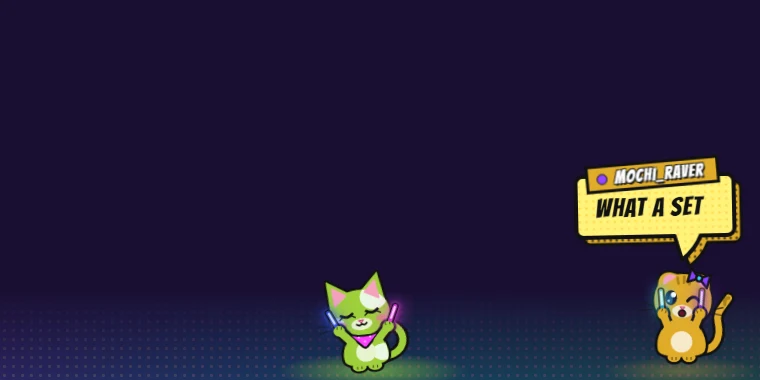
A green cat and an orange cat with glowsticks dance on a glowing floor; one shouts WHAT A SET in a yellow comic bubble Chat overlay

Rave Cat Chat

Every chatter becomes a glowstick-waving cat that dances to the beat and says their message in a comic speech bubble.
  • Twitch
  • Kick
  • YouTube
  • TikTok
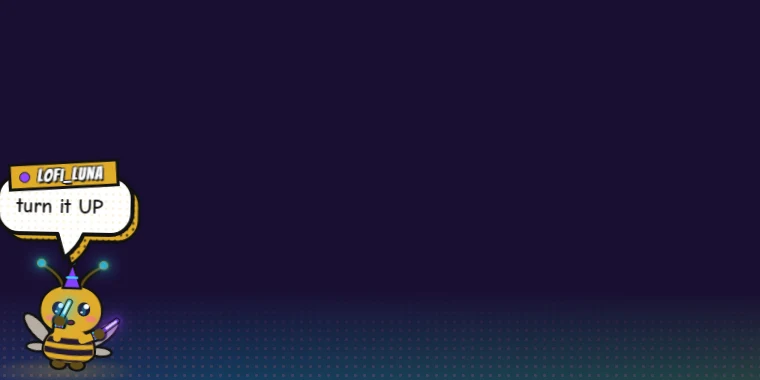
Three cartoon bees with glowsticks and party hats dance on a glowing floor; one says turn it UP in a speech bubble Chat overlay

Rave Bee Chat

The same party, but buzzier. Chatters show up as dancing bees with headphones, shades and glowsticks. BZZZ! KAPOW!
  • Twitch
  • Kick
  • YouTube
  • TikTok
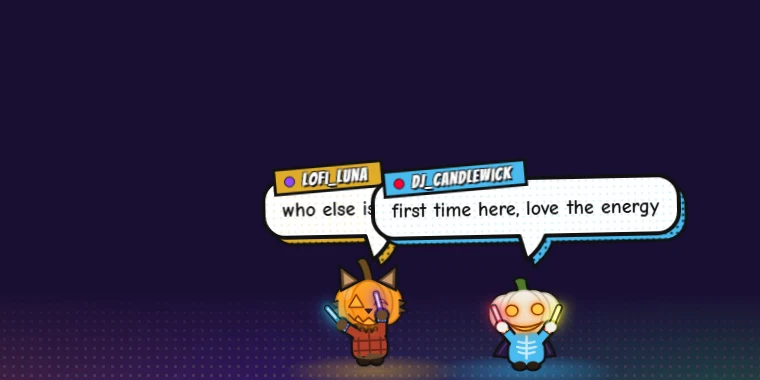
Two costumed jack-o'-lanterns, one dressed as a cat and one as a skeleton, dance with glowsticks under chat speech bubbles Chat overlay

Rave Pumpkin Chat

Spooky season rave! Chatters show up as jack-o'-lanterns in costume, from vampires to astronauts, and each one always gets the same look. BOO! MWAHA!
  • Twitch
  • Kick
  • YouTube
  • TikTok
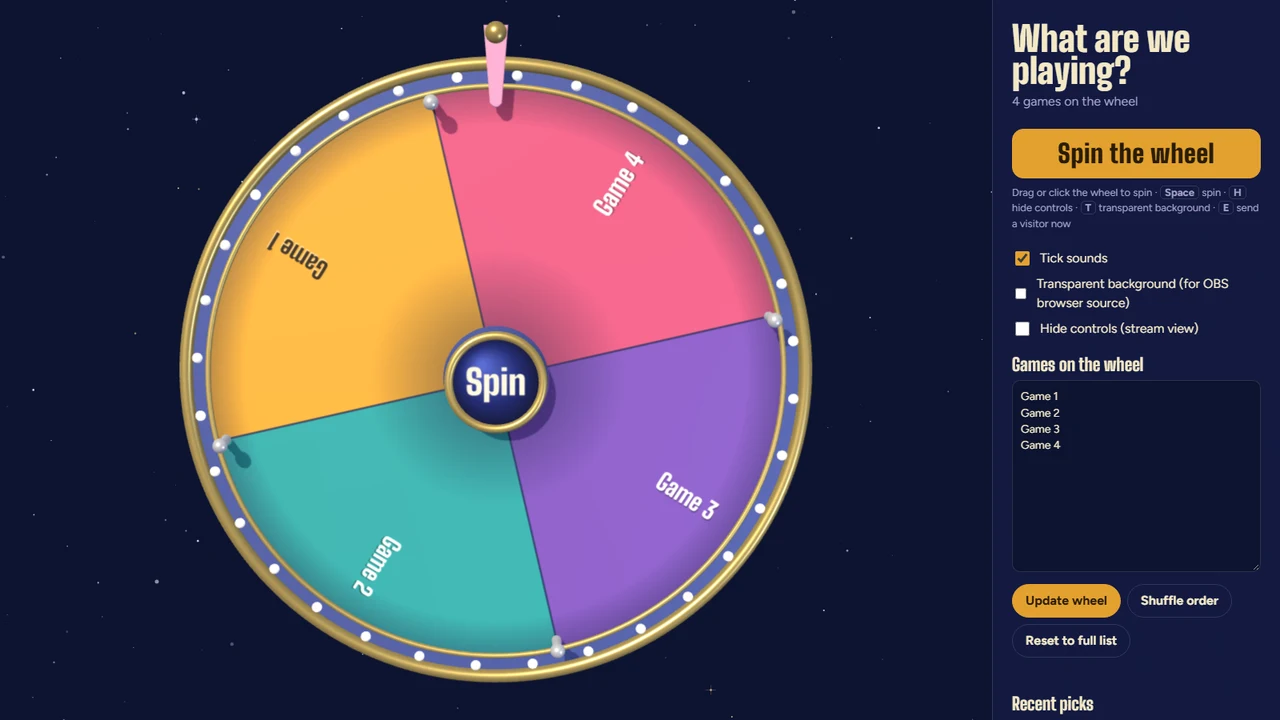
A colorful spinning prize wheel on a starry night background with a games list beside it Widget

Game Wheel

"What are we playing?" Fill the wheel with your games, give it a spin on stream, and let fate decide. Surprise visitors included.
  • Transparent background
  • Stream view
  • Pick history
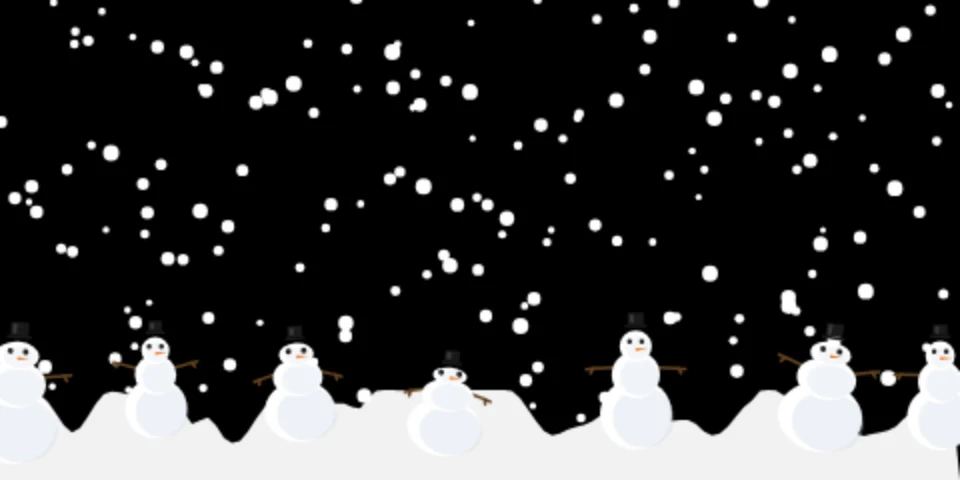
Snow falls on a black background and has piled up along the bottom, where a row of snowmen in top hats stand in the drift Overlay

Snowfall

Let it snow! Flakes drift over your stream, pile up along the bottom, and build themselves into snowmen that wave for a while before melting away.
  • Snowmen
  • Wind gusts
  • Transparent background
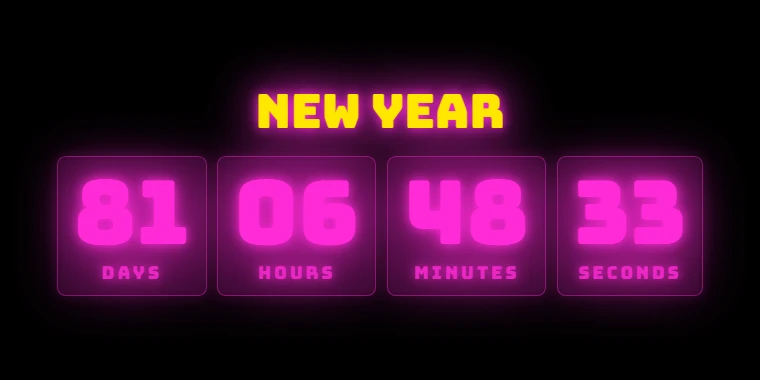
A neon countdown titled NEW YEAR, with pink glowing blocks for days, hours, minutes and seconds Widget

Countdown Timer

"Stream starts in…" Design a countdown with your own fonts, colors and effects, then paste the link into OBS. Everyone counts down to the same moment.

  • Any Google Font
  • Neon & glitch effects
  • Transparent background

More on the way…

New overlays and widgets get added here as they're built. Check back soon!

Adding a tool to OBS

Browser source in 4 steps

  1. Add a Browser source In your scene's Sources list, click + → Browser, give it a name and press OK.
  2. Paste the tool's link Put the tool's URL in the URL box. Set Width 1920 and Height 1080 (or your canvas size).
  3. Set it up from inside OBS Right-click the source → Interact. That opens a window where you can click the tool's settings, just like a normal web page.
  4. Go live! Settings are saved inside that browser source, so they'll still be there next stream.

Good to know

  • Everything runs in the browser source — nothing to install, no login.
  • OBS keeps its own browser storage, so settings you make in Chrome or Firefox don't carry over. Use Interact to set up the copy in OBS (or use a setup link, for the rave overlays).
  • Using Streamlabs Desktop, Meld or XSplit? They all have a browser / web-page source that works the same way.
  • If a source gets stuck, open its properties and press Refresh cache of current page.